
Teams
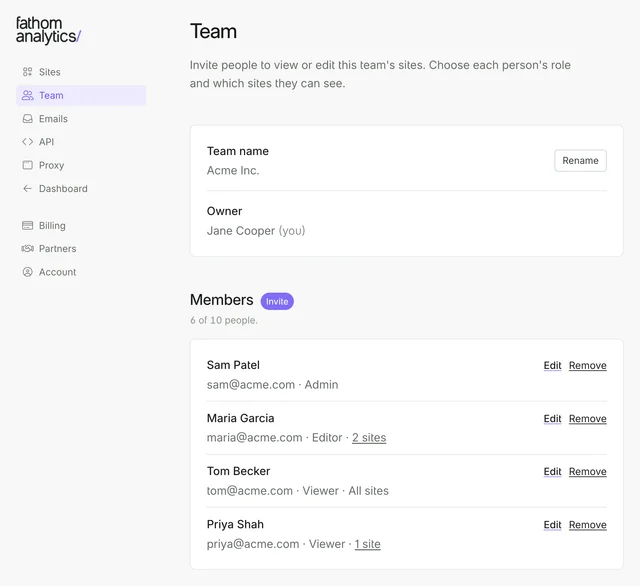
On the Business plan, you can invite people to your Fathom account with their own login. You give each person a role, and you choose which sites they can see. You pay for the team, so the people you invite don’t need a plan of their own.
Seats
- The Business plan includes 10 team seats, plus you. As the owner, you never take a seat.
- Need more? Add extra seats for $10/month each (or $100/year), up to 50 seats in total. Go to
Settings, thenBilling, and clickChange plan. If you need more than 50, talk to us. - Each person takes one seat, however many of your teams they’re in. A pending invitation takes a seat too, until it’s accepted, revoked or expires.
- People who view a shared dashboard or receive an email report don’t need a login, so they never take a seat.
- The Standard plan doesn’t include team seats. To invite people, go to
Settings, thenTeam, and clickUpgrade to Business. Compare the plans on our pricing page.
Invite someone
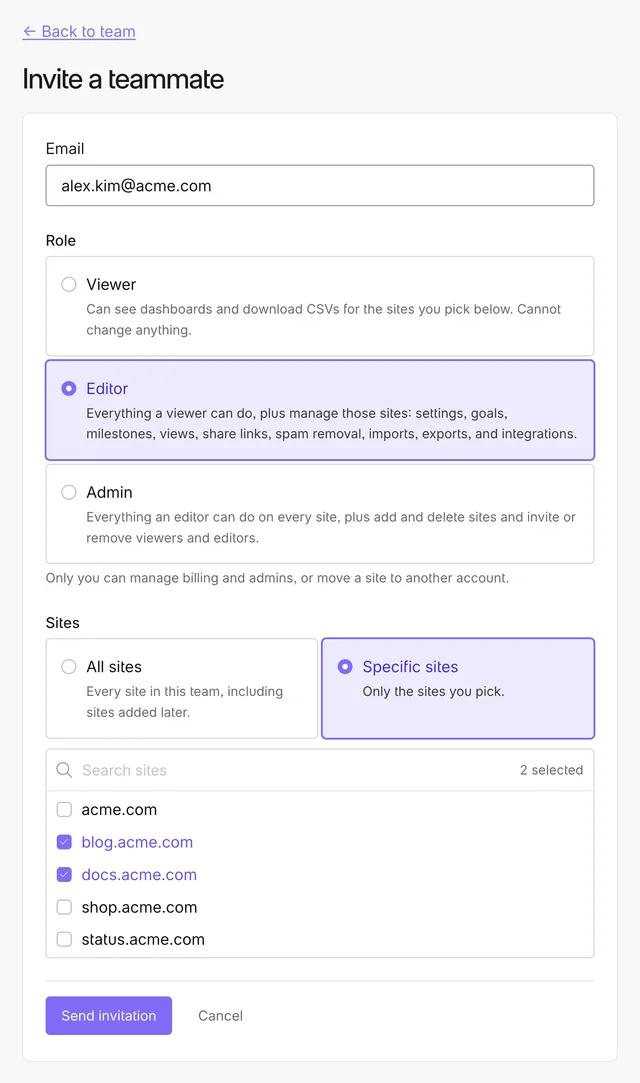
- Go to
Settings, thenTeam. - The first time, give your team a name, such as your company name, and click
Save team name. Invitations show this name. - Click
Invitenext toMembers. - Enter the person’s email address.
- Choose their role.
- For a viewer or an editor, choose
All sites(every site in the team, including sites you add later) orSpecific sites, then tick the sites they can see. - Click
Send invitation.
We email them a link that works for 7 days. If they don’t have a Fathom login, they create one from the link, with no plan or card. If they already have one, they sign in and accept.
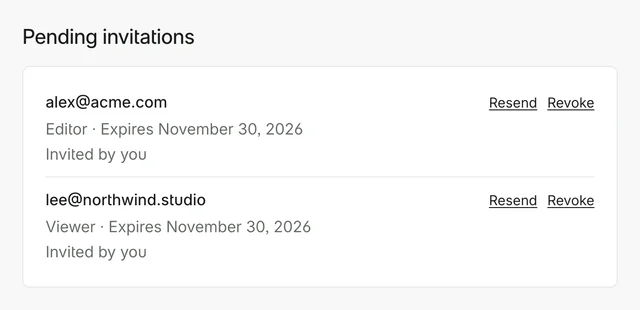
Until then, the invitation shows under Pending invitations on the Team page. Click Resend to email a new link (the old link stops working), or Revoke to cancel it.
Roles
| Role | What they can do |
|---|---|
| Viewer | See dashboards and download CSVs for their sites. They can’t change anything. |
| Editor | Everything a viewer can do, plus manage their sites: settings, goals, milestones, saved views, share links, data removals, imports, exports and integrations. |
| Admin | Everything an editor can do on every site, plus add and delete sites, invite and remove viewers and editors, and manage the team’s email reports and API keys. |
| Owner (you) | Everything, plus billing, inviting and managing admins, moving a site to another account, and closing the account. |
Admins always see every site in the team. Viewers and editors see all sites, or only the sites you pick.
Change or remove someone
On the Team page, click Edit next to a person to change their role or their sites, then click Save changes. Click Remove to take away their access.
- Email reports: if they receive any of the team’s email reports, we ask whether to take them off those reports too. When a change takes sites away, they always come off the team’s
All sitesreports. - API keys: keys they created keep working, so an integration doesn’t break when someone leaves. Disable a key on the API page.
- Share links: links they created belong to the site, so they keep working.
- Google connections: when someone loses access to a site, we disconnect the Google Search Console connection they set up on it and remove the Google Analytics access they gave for imports.
Team activity
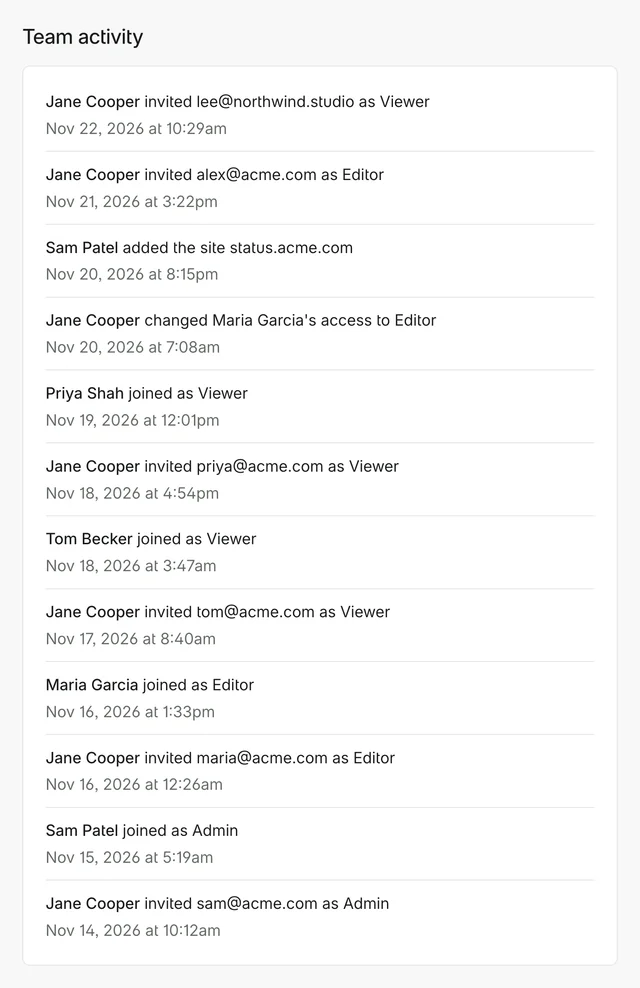
The Team page lists your team’s activity (the team audit log), newest first. You and your admins can see it. It shows who invited, joined, changed or removed people, who added, deleted or moved sites, and who changed share links, API keys and email reports. We keep it for 365 days.
Work in more than one team
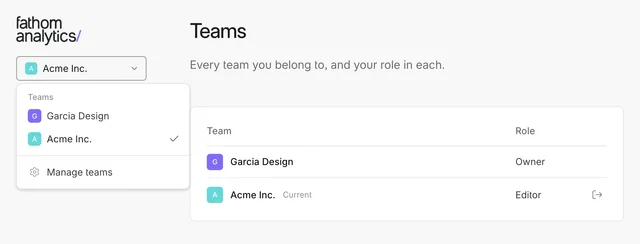
If you belong to more than one team, for example your own and a client’s, the team name shows at the top of the settings menu. Click it to switch teams. Each browser tab keeps its own team, so you can have two teams open side by side.
To see all your teams and your role in each, click Manage teams. To leave a team, click the leave icon next to it. You’ll need a new invitation to join again.
The owner of a team pays for it, so a team you’ve joined doesn’t show Billing in its settings menu. Your own billing stays with your own account.
If the owner’s plan changes
- Moving to Standard: remove your members and pending invitations first, because Standard has no team seats.
- Fewer seats than people: your members keep their access, but you can’t send new invitations until you add seats or remove someone.
- Cancelled or locked: if the owner’s subscription ends, or the account is locked for staying over its plan limit, members can’t open the team’s sites until the account is active again.
- Closed account: if the owner closes their account, their teams end, and we email the members to let them know. Members’ own Fathom accounts aren’t affected.