Creating and using events
trackGoal for new goals/events. If you’re using trackGoal currently, it’ll continue to work: an old goal code is recorded under its event name, and any other value you pass is recorded as an event with that name. Use trackEvent, below, for anything new.Events (also commonly referred to as goals or conversions) allow you to track actions that visitors take on your site. For example, button clicks, form submissions, newsletter sign-ups, and even e-commerce conversions like starting a free trial or buying a product could all be events that you’re able to track.
Events currently include one required variable (the event name) and supports one optional parameter:
- Required: the event name (set in code on your site; see below examples)
- Optional: options object (supported value:
_value)
Always make sure that you add the event code after your Fathom script to ensure the script is loaded first. Events are tracked on local and staging environments too, so if you don’t want test data in your dashboard, block your local environments.
You also cannot rename an event once it’s been created and fired off to your dashboard but you can easily change the event name you’re sending us from your code.
Here’s how to track various events and conversions in Fathom
- Track link clicks
- Track external link clicks
- Track page load conversions
- Track 404/error pages
- Track ecommerce conversions
- Track form submissions
Watch a video tutorial on simple events.
Allowed event names
You can name your event any name you want, but avoid special characters and emojis. Event names can be anything, but most importantly, they need to be something you (and your team) can easily and instantly recognize - so you know what each event conversion means.
Example code for events
Here’s an example of how events are programmed into your site:
fathom.trackEvent('cart add', {
  _value: 100, // Value in cents
});
Here’s an example of a simple event without a value:
fathom.trackEvent('newsletter signup');Changing how conversions are calculated
You can update how conversions are calculated in your site settings. From your dashboard, go to: Settings > Click on your site name > Locate Event Conversion Formula setting in the list
By default, the conversion rate is based on Page views: Event completions / total Page views
If you switch the setting to Site visitors, the formula changes to: Event completions / total People
This lets you customise how conversions are measured based on your specific goals.
Setting a default event currency
New events start with no currency of their own. They use the site default, which is None until you change it.
- On your dashboard, click the currency icon next to expand and search on the Events box. The icon matches your account country (for example a pound in the United Kingdom, a dollar in the United States).
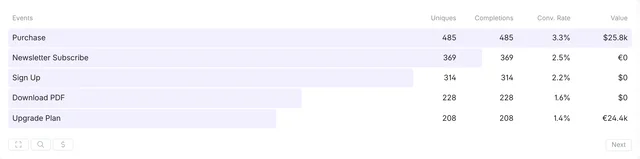
- At the top of the modal, set Default currency for this site.
- Under Individual event currencies, click Add.
- Search a collected name or type the name you send in
fathom.trackEvent('…'). - Pick a currency, then click Add currency.
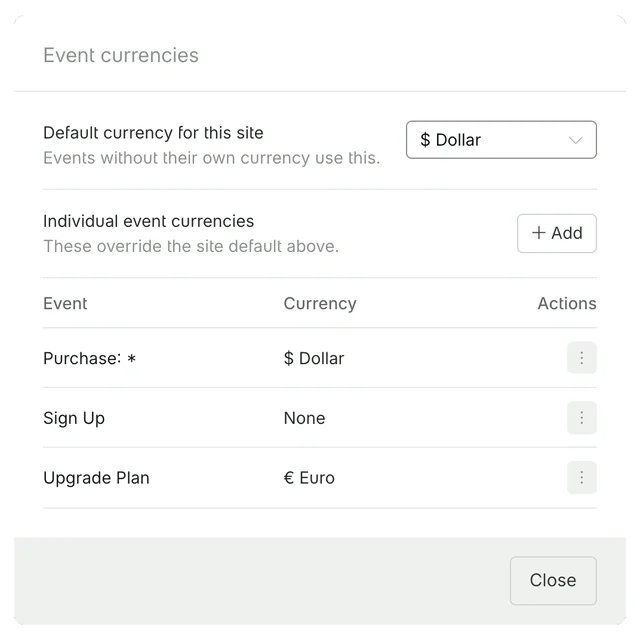
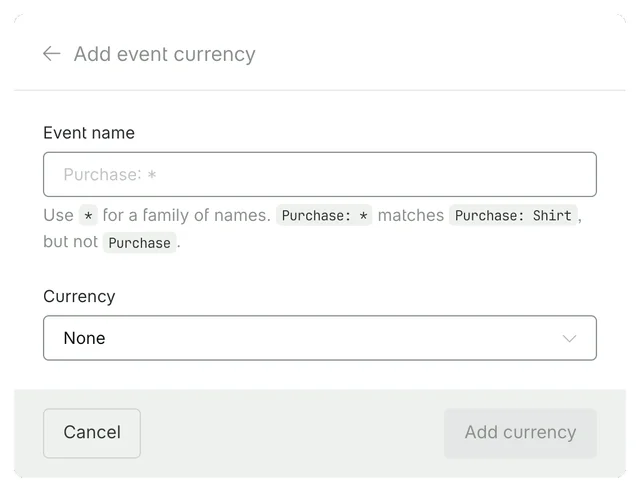
To set one currency for a family of names, use * in the event name. Purchase: * matches Purchase: Shirt and Purchase: Hat. It does not match Purchase. * purchase matches big purchase. Saving a pattern also updates leftover events on that site whose names match. An exact name wins over a pattern. If two patterns match, the one with more literal characters wins (Purchase: * beats *).
Other events still collect and still use the site default. Choose None on an event to keep it unvalued even if the site default later changes.
The list shows each event name and its currency. Open the three-dot menu on a row, then Edit, to change its currency. Use Remove, then confirm, to delete its currency mapping. The event then uses the site default again. Removing a currency mapping does not delete event data.
The dashboard and email reports use the event’s own currency when you have set one, including an explicit None. A matching pattern counts as that event’s own currency. Otherwise they use the site default.
Deleting events
Event deletion is under maintenance. You cannot delete an event or its data from the dashboard right now.
If your account was created on 24 August 2026 or earlier, the Events tab in site settings (Settings > your site > Events) explains this and links to the new places for block, allow, and currency. Newer accounts do not see that tab.
To stop collecting an event name in the meantime, use the Firewall Events list. See Firewall events. If you need historical event data removed, contact us.
Stopping junk event names
To stop collecting an event name (or to collect only the names you send), use the Firewall Events list. Open Settings, then your site, then Firewall, then Events. Choose Block or Allow, add names or wildcards, and save. The next event after you save uses the new list. See Firewall events.
Using events with GTM (Google Tag Manager)
If you’re looking for ways to use Fathom events in GTM, take a look at our tailored examples for GTM in our GTM documentation.