
Data removals
Sometimes visits you don’t want end up in your dashboard: your own test runs before a launch, a staging site that shared your live tracking code, or spam that got past our bot detection. You can remove them from your past data yourself, and undo the removal later if you change your mind.
Remove visits
- Open
Settingsand pick your site. UnderMore, openManageand clickData removals. - Click
Create data removal. Your dashboard opens in removal mode, with a banner along the top. - Pick the date range the visits appear in.
- Filter down to the visits you want gone. Click rows or use Advanced Filters. Spam often needs more than one filter, for example a referrer and a country, because spammers often use referrers and countries that real visitors use too.
- Click
Nextin the banner. The review shows how many visitors and pageviews match, plus their top referrers, countries, and pages. If you see real visitors there, clickCanceland add another filter. - Optionally give the removal a name, such as “Staging traffic”, then click the
Removebutton. It shows how many visitors will go, for exampleRemove 214 visitors.
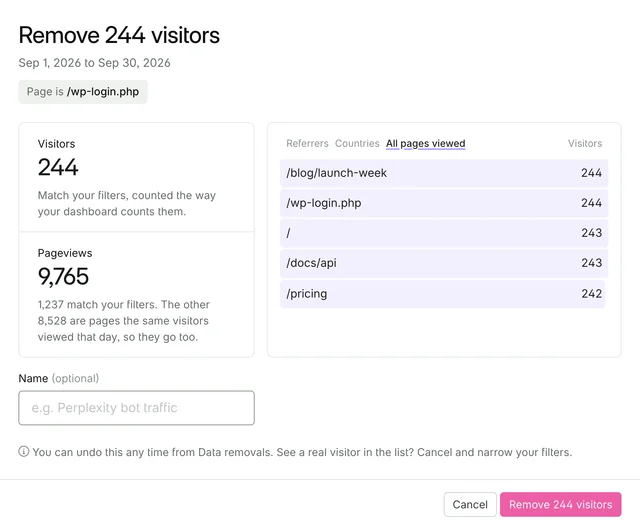
You’re taken back to Data removals, where you can follow progress. Your reports update newest day first, so a long date range can take a while. We’ll email you, and show a notification on your dashboard, when it’s done.
Only the site owner can remove data. People viewing a shared dashboard can’t.
What gets removed
A visitor is removed when they match your filters the same way they do on your dashboard. For example, “Page is /pricing” and “Referrer Hostname is google.com” matches visitors who arrived from Google and viewed /pricing at some point that day. We then remove that visitor’s whole day within your date range, including the other pages they viewed and the events they triggered, so no half-visits are left behind. A visitor’s day runs from midnight to midnight UTC, so on the first and last day of your range it can include a few of their hours just outside it. That’s why the review can show more pageviews than your dashboard does for the same filters.
Removed visits disappear from your dashboard, exports, email reports and the API, and their pageviews no longer count towards your usage.
- Today is included. A removal covers visits up to the moment you open the review. If your date range runs past that, the review shows the time it stops at. Visits that arrive after it stay in your reports.
- Imported data stays. Data imported from Google Analytics or Gauges can’t be removed, so removal mode hides it.
- Two filters can’t be used: Referrer Source and AI Source. Remove them to continue. Removal is also not available while you’re viewing Google Search Console data.
- One removal at a time. You can start another when the current one finishes. Each account can start up to 30 removals or undos a day.
- Very busy ranges. If a date range has too many visits to review at once, or too many visitors to remove, we’ll ask you to pick a shorter one.
Undo a removal
Removed visits are hidden, not deleted. To put them back, open Data removals in your site’s Manage settings and click Undo next to the removal, then Undo removal. Your reports rebuild the same way, newest day first, and we’ll email you when they’re done.
Stop it coming back
Removing visits cleans up the past. To stop the same traffic from being counted in the future, block its referrer, country, or IPs in your firewall settings.