
Saved Views
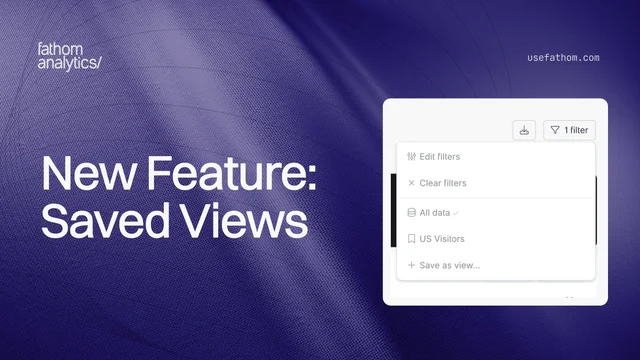
If you find yourself applying the same filters over and over (US visitors, blog traffic, a specific UTM campaign), you’ll like this one. You can now save any combination of filters as a named view and switch to it in a single click.
Set up your filters the way you want them, open the filter menu in the top right of your dashboard, and choose Save as view…. Give it a name like “Blog traffic” or “US visitors” and it’s saved. From then on, that view lives in your filter menu, ready whenever you need it.
Switching is instant. Open the filter menu and you’ll see All data at the top (your unfiltered dashboard), followed by each of your saved views. Click one to apply it, and the filter button shows its name so you always know what you’re looking at.
A few things worth knowing:
- Shared with your team. Saved views belong to the site, not just to you. Everyone with access to the dashboard sees the same views, so your whole team works from the same set of segments.
- Layer filters on top. Got a view active but want to dig into something specific? Add filters on top and the button shows you both (e.g. “US Visitors +1”). Your saved view stays untouched.
- Edit or delete anytime. Each view has edit and delete buttons right in the menu, so you can adjust the filters behind a view or remove one you no longer need.
- Tidy URLs. An active view gives you a clean, bookmarkable URL instead of a long string of filter parameters.
You’ll find it behind the filter button in the top right of your dashboard.
Jun 23, 2026